 Money
Money
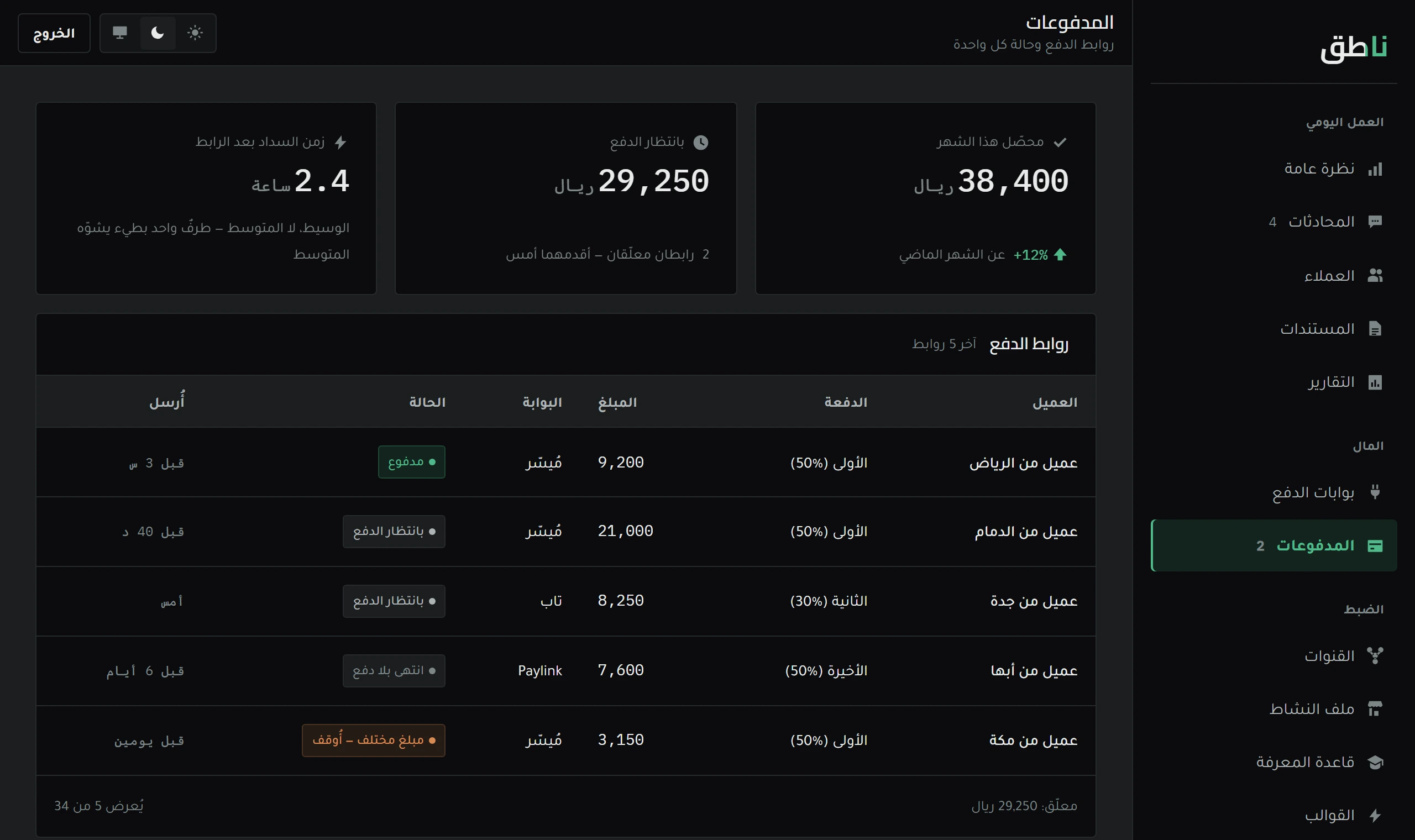
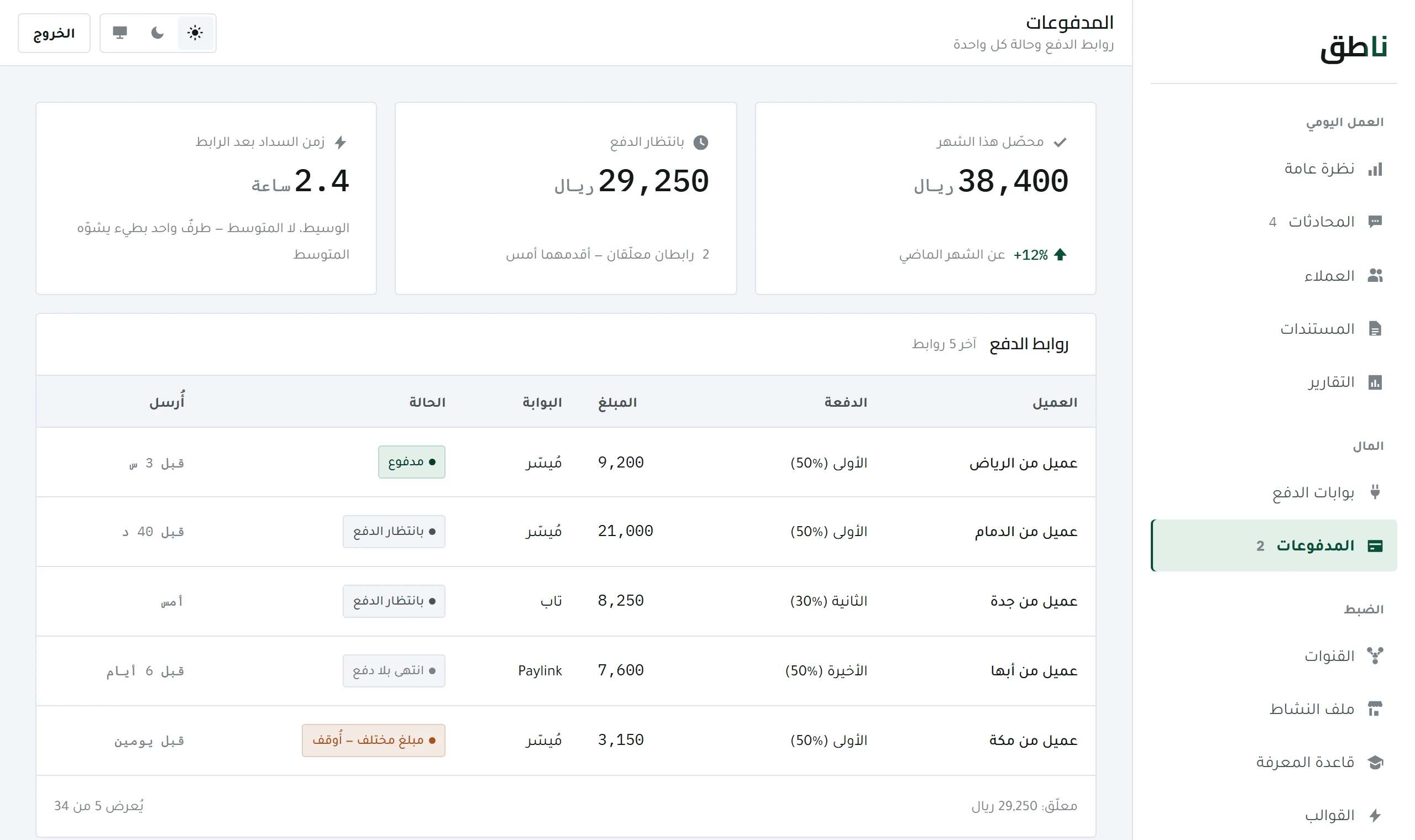
Tracking payments — sent, late and expired links
The payment ladder, the state of every link, and why a payment is not recorded just because the customer said «I transferred it».
6 minOpen lesson
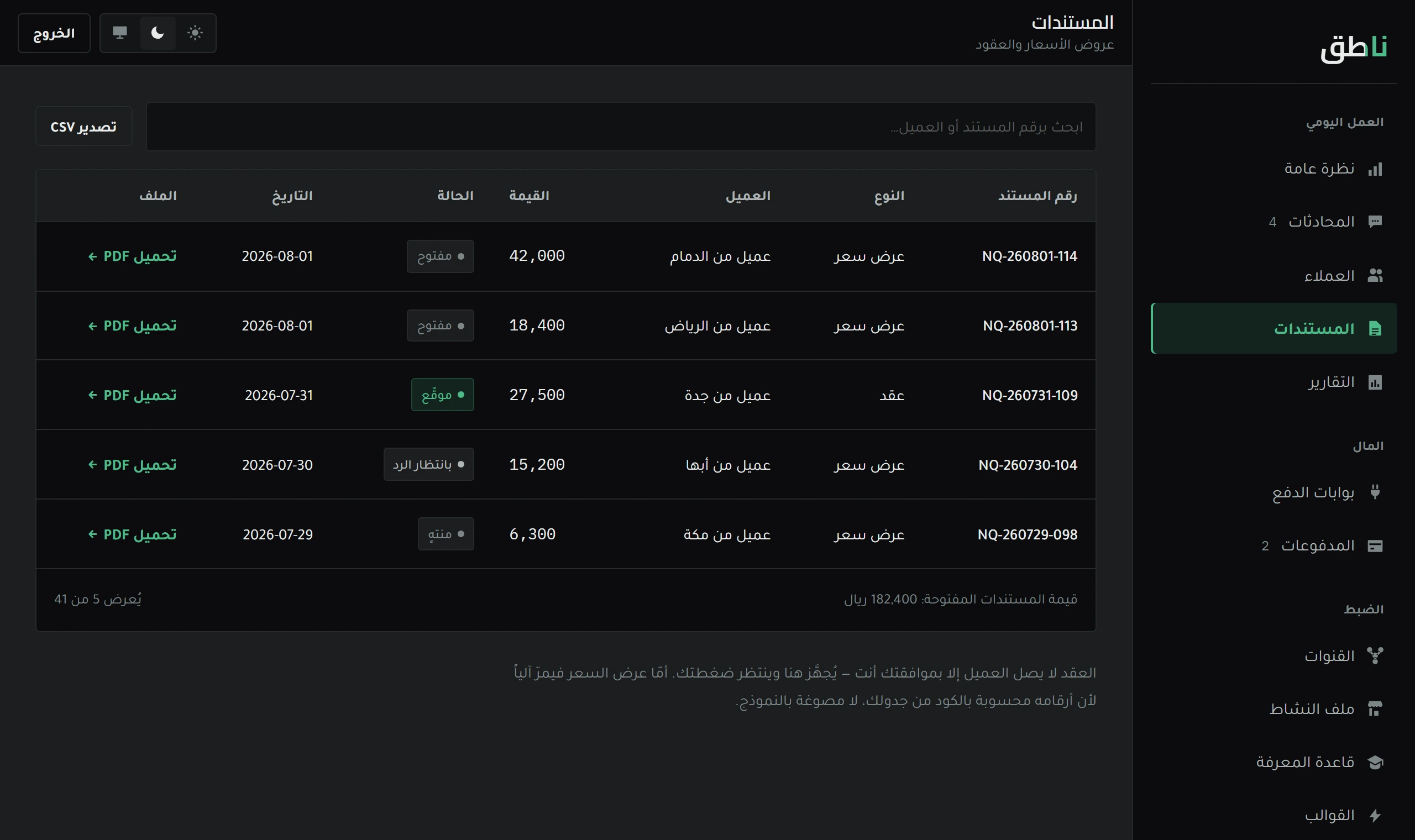
The system prepares the document and does not issue it. Why approval is always manual, and how to approve from WhatsApp in one message.
Daily work · 7 min read
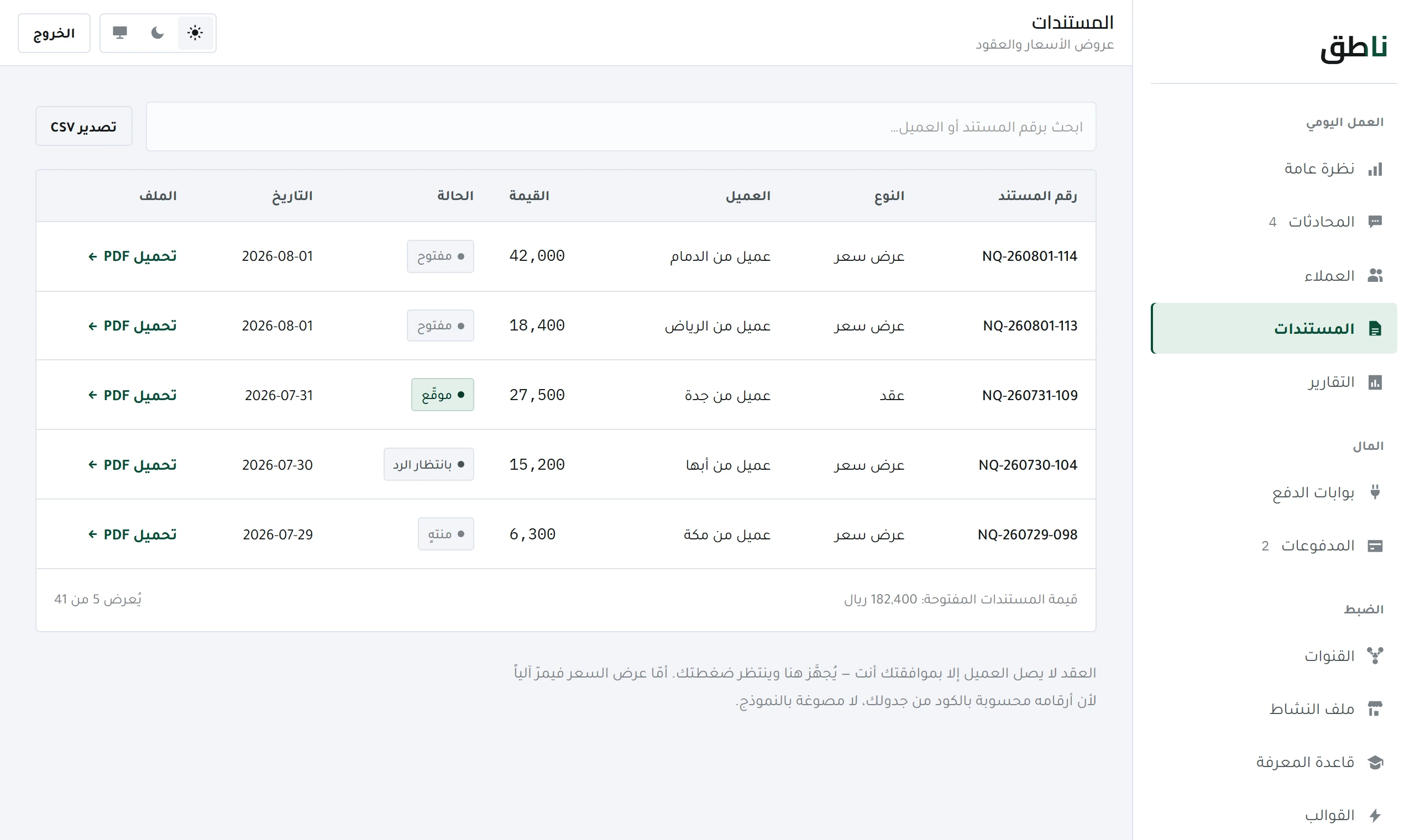
The system prepares the quote and the contract in full — number, date and clauses — and then stops. It sends nothing to the customer until you approve it, even if every figure in it is correct.
This is not a cautious setting you can switch off: there is no flag in the system that makes approval automatic. This lesson explains why, and how to approve in a single message from your phone.
The document reaches you in your own chat with the system. You reply with approved followed by the document number — and it goes to the customer then, not before.
The difference between a wrong reply and a wrong document is that the first is fixed with a sentence, while the second is a paper in the customer's hands carrying a number and a date. And an AI model — however good — misreads a number once in a thousand times.
Once in a thousand is acceptable in an answer and completely unacceptable in a contract. So the job was split: the model prepares, the code computes the amount from your schedule, and you approve.
| Step | Who performs it |
|---|---|
| Gathering the customer's requirements | The system, in the conversation |
| Computing the total and the payment schedule | The code — not the model |
| Drafting and numbering the document | System |
| Approval and sending | You alone |
| Requesting the first payment link | The code, after your approval |
Every business has its own prefix showing in its document numbers. Changing it changes the shape of the number you type in the approval command — so the prefix and the approval command are linked, and they change together, never separately.
The old prefix was welded inside the expression that reads the approval command. Had the prefix changed without the expression, the «approved» message would fall through to the ordinary customer path — with no error and no alert, and documents would quietly stop being approvable without you knowing.
As a file in the same conversation, on the same channel they write to you from.
From the contract total, not from text someone typed. The amount comes out of the schedule — not out of a message and not out of a model.
If a payment gateway is active. Otherwise the bank transfer instructions stay as they are.
If the payment does not arrive on time the system reminds the customer — and tells you if it could not send at all.
You then track the payment in Payments screen.
Because a document is a financial commitment under your signature. A model may misread a number once in a thousand times — and once in a contract is enough. Approval is manual by construction, not by configuration, and there is no switch that disables it.
The document reaches you in your own chat with the system; you reply with «approved» and the document number. Only then — not before — is it sent to the customer, and the first payment link is requested if a gateway is active.
Money
The payment ladder, the state of every link, and why a payment is not recorded just because the customer said «I transferred it».
 Daily work
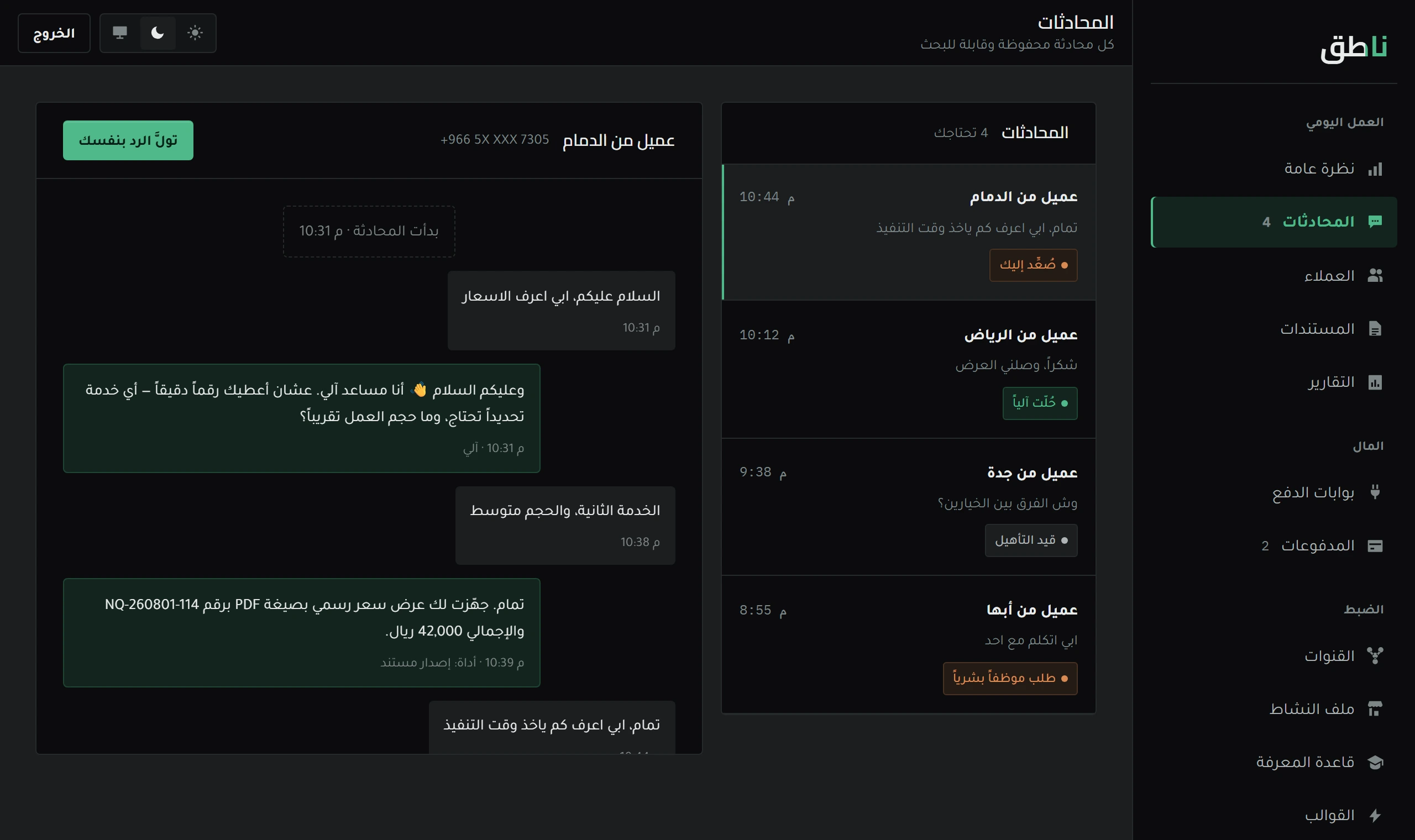
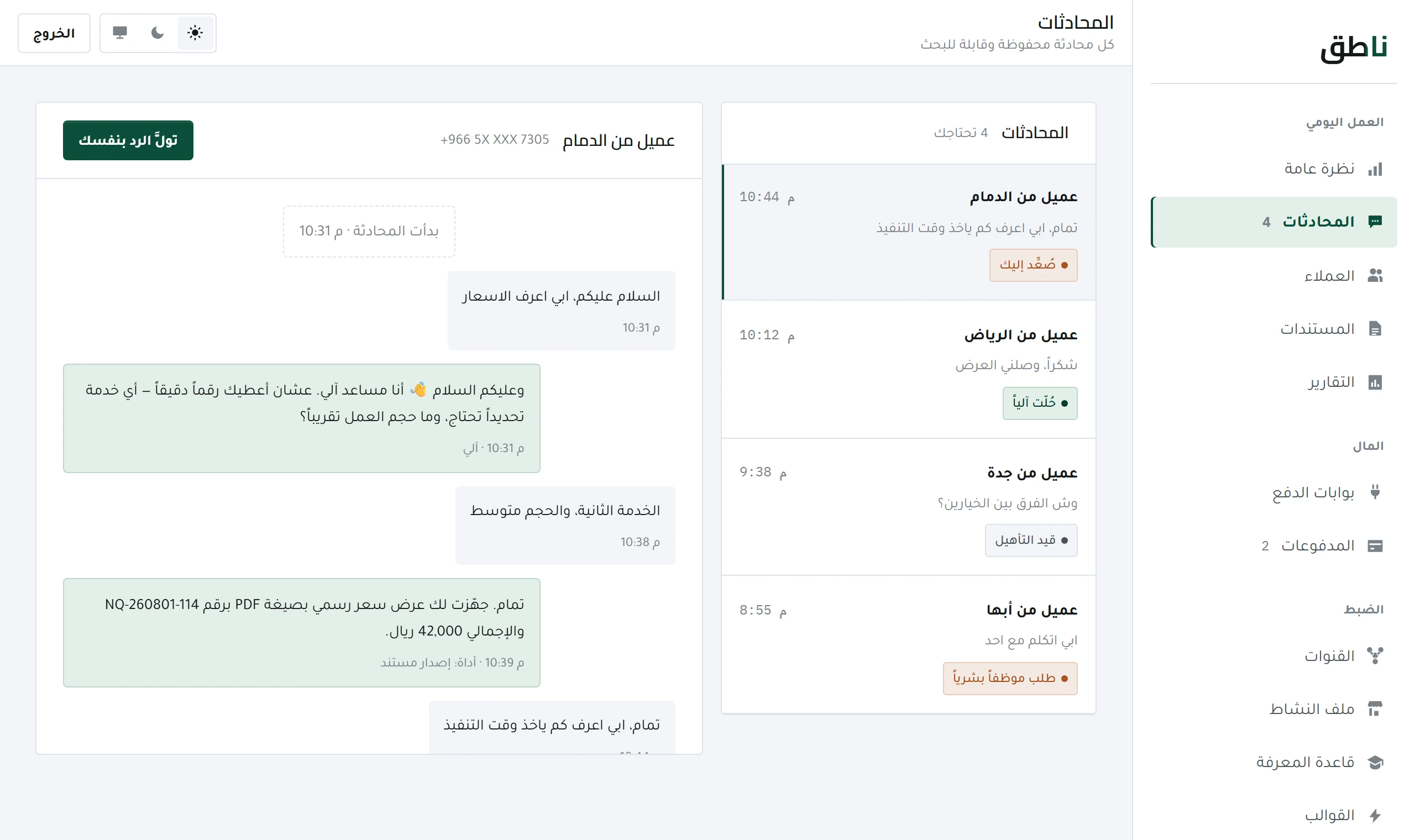
The system replies on its own, and you see everything. How to read a conversation, what the «escalated» tag means, and what happens when you type.